The short answer
| In Freshdesk | In Intercom | How it is handled |
|---|---|---|
| Ticket | Conversation, or ticket of the type you choose | One per ticket, created with its original date |
| Subject | Title | Carried as it is |
| Description | The opening message | In Ticket mode it also fills the ticket’s description |
| Reply | Reply | Original time and author kept |
| Private note | Internal note | Never shown to the customer |
| Requester | Contact | Matched on email or external ID |
| CC addresses | Participants | Added to the conversation |
| Agent and group | Teammate and team | Mapped one by one |
| Status | Open, snoozed or closed, or a ticket state | You choose each value |
| Priority | Intercom’s own priority field | Value by value, as conversations |
| Type | A list attribute | Value by value |
| Tags | Tags | Matched to existing tags, ignoring case |
| Custom ticket fields | Conversation or ticket type attributes | Field by field, values one by one |
| Contact and company fields | Contact and company attributes | Field by field |
This page is for the admin who plans the mapping. For what moves overall, and what you set up again in Intercom, see Freshdesk to Intercom migration. For what to switch off before the first run, see the helpdesk migration checklist for a Freshdesk to Intercom move.
The first decision: conversations or tickets
Before any field is mapped, choose how Freshdesk tickets land in Intercom: as conversations, or as tickets of an Intercom ticket type. The choice decides which fields you can map to, so make it first.
- Conversations. Each ticket arrives as a conversation with its whole thread. Ticket fields map to conversation attributes, and priority maps to Intercom’s own priority field. Conversation attributes cannot be created through Intercom’s API, so create the ones you need in Intercom before mapping.
- Tickets. Each ticket starts as a conversation carrying the thread and is then converted into the ticket type you pick, which adds the type’s attributes to the mapping and gives each record a ticket state. A ticket type has no priority field, so priority is not mapped in Ticket mode. Missing ticket type attributes can be created from the mapping screen, but the ticket type itself is created in Intercom first.
If you are unsure, read Intercom tickets vs conversations. The mapping locks for the whole migration once a run completes, a completed Sample included, so settle this before the Sample. A failed or cancelled Sample locks nothing, and to change a locked mapping you clone the migration.
Freshdesk ticket fields and where they land
| Freshdesk ticket field | In Intercom | Good to know |
|---|---|---|
| Subject | Title | The conversation or ticket title. |
| Description | Opening message | In Ticket mode it also fills the description, which holds at most 32,766 characters. A longer one is cut there and named as a Vendor limit; the full text stays in the opening message. |
| Requester | The contact who opens the conversation | Intercom opens every conversation in its contact’s name, so a ticket an agent opened for a customer shows its first message as the customer’s, and the record says so. |
| CC addresses | Participants | People copied on the ticket are added to the conversation. |
| Agent | Teammate | Teammates must already exist in Intercom; its API cannot create them. Anyone missing falls back to a default you choose. |
| Group | Team | The team is assigned first and the teammate second, so Intercom’s round-robin does not replace the teammate you mapped. |
| Status | State, or ticket state | You map every value; see the status table below. |
| Priority | Intercom’s own priority field | Mapped value by value when you migrate as conversations. |
| Type | A list attribute | Intercom tickets have no built-in Type. It travels only when you map it. |
| Tags | Tags | Matched to your existing Intercom tags, ignoring case, and reused as they are, never renamed. |
| Created date | Created date | Each conversation and each reply keeps its original time. Intercom sets its own last-updated time when the record is written. |
| Due by and first response due | Not carried | SLA due dates are not carried. Set SLA rules up again in Intercom. |
| Source (email, portal, phone, chat) | Not carried | Intercom’s API creates every migrated conversation as an email conversation. |
Custom fields, type by type
Most Freshdesk custom field types have a matching Intercom attribute type. Where the Intercom attribute does not exist yet, it can be created from the mapping screen for contacts, companies and ticket types; conversation attributes are created in Intercom first.
| Freshdesk field type | Intercom attribute | Good to know |
|---|---|---|
| Single-line text | Text | |
| Multi-line text | Multi-line text | Line breaks are kept on a multi-line attribute. |
| Checkbox | True or false | |
| Number and decimal | Number and decimal | |
| Date | Date | |
| Dropdown | List | Each value is mapped to an Intercom value one by one, with a fallback you choose. |
Intercom refuses a list attribute on contacts or companies with fewer than two or more than 35 options, and the mapping screen tells you so by name before anything is created. A Freshdesk dropdown with more values than that is mapped to a text attribute instead.
Statuses and priorities, value by value
Every value inside a field is mapped in writing to where it lands, with a fallback you choose. A value with no match and no fallback is left off and named as a Setup gap, never swapped for a guess.
Statuses decide whether each conversation ends up open or closed. The state you map each status to is applied exactly, and it is written last, after the replies and the assignment, because each of those reopens an Intercom conversation. In Ticket mode, the category of the ticket state you map to decides open or closed. A sensible starting point, which you can change value by value, custom statuses included:
| Freshdesk status | As a conversation | As a ticket (state category) |
|---|---|---|
| Open | Open | In progress |
| Pending | Open | Waiting on customer |
| Resolved | Closed | Resolved |
| Closed | Closed | Resolved |
Map a status to Snoozed only if you want those conversations back: a snoozed conversation wakes after 7 days and reappears as open in the inbox.
Priority has a home of its own. When you migrate as conversations, Freshdesk’s Low, Medium, High and Urgent map to the same values of Intercom’s own priority field. Type has no built-in home in Intercom, so it becomes a list attribute you create first, with values that match Freshdesk’s.
Contacts and companies
- User or lead. Freshdesk contacts become Intercom users or leads, as you choose in the mapping. An Intercom user needs an email or an external ID; a lead needs neither, but Intercom will not store an external ID on a lead.
- Matching. Contacts are matched on email or external ID, never on name or phone, so two people who share a name are never merged.
- Archived in Intercom? A matching archived contact is unarchived and updated, not created again.
- Dates. Intercom has no writable created date for a contact, so the Freshdesk creation date goes into the contact’s signed-up date.
- Phone numbers. If phone number validation is on in Intercom, numbers it cannot validate are refused. Turn it off for the run.
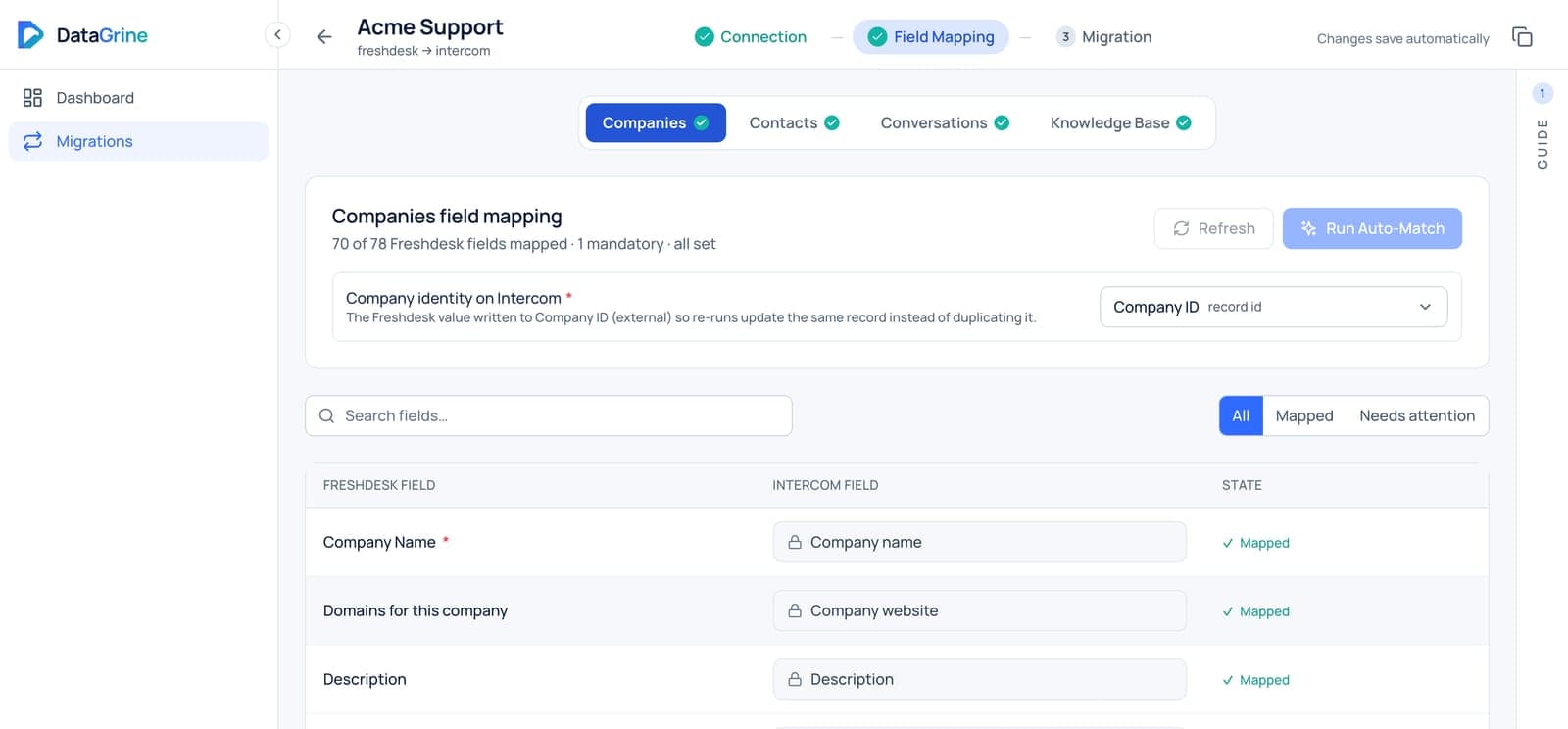
- The company ID. Intercom identifies a company by its company ID alone, and the ID cannot change later, so a re-run updates the same company. Two companies sent with the same ID become one.
- Visible once it has people. Intercom shows a company once at least one contact is attached to it.
- Agents are not contacts. They map to Intercom teammates, who must exist before mapping.
More on keeping one person as one contact: avoid duplicate contacts in an Intercom migration.
Solutions to the Help Center
- Structure. Categories, folders and sub-folders map onto Intercom’s three collection levels, with each article in its place.
- Languages. Translations travel for the languages you add in Intercom; more than one language needs the Advanced plan or higher.
- Tags and files. Intercom articles have no tags and take no file uploads, so source tags are written into the article body, and files the article cannot hold are listed there by name with the source article’s lasting link.
- Published articles go live as soon as they arrive. Folder visibility is never migrated, so set who can see each article again in Intercom.
More detail: Freshdesk to Intercom knowledge base migration.
What cannot map, and the honest workaround
Nothing here disappears silently. Each of these is named on its record and counted in the Reconciliation report, as a Vendor limit, a Setup gap or Not carried.
| In Freshdesk | Why it has no place | The workaround |
|---|---|---|
| Type field | Intercom tickets have no built-in type | A list attribute, or a ticket type per kind of work |
| Priority in Ticket mode | A ticket type has no priority field | Migrate as conversations if priority matters to you |
| Dropdowns with more than 35 values (people) | Intercom refuses longer lists on contacts and companies | A text attribute |
| Original channel | Every migrated conversation is created as email | Keep a Freshdesk export if you report on channel |
| Inline image position | Freshdesk image links expire within minutes | The image arrives as a file on the same message |
| Very long descriptions | A ticket description holds 32,766 characters | The full text stays in the opening message |
| Satisfaction ratings | Intercom’s API cannot write a past rating | Keep the Freshdesk report |
| Time entries | They are not read from Freshdesk | Keep a copy before you close Freshdesk |
| Archived tickets | They are not migrated | Export the Archive view |
| SLA due dates | Not carried | Set SLA rules up again in Intercom |
Check the mapping on a free Sample
The Sample is free: 20, 100, 500 or 1,000 of your own tickets (100 by default), with the contacts and companies they use. Sample records are real records in Intercom, and the Full migration recognises them instead of creating them twice. Pick tickets that test the mapping, then open them in Intercom and check:
- Each mapped attribute holds the value you expected, including your dropdowns.
- Resolved and closed tickets arrived closed, and open ones open, as your status map says.
- Each conversation shows the Intercom priority you mapped, and Type sits in the attribute you made for it.
- Tags match your existing Intercom tags, with no near-duplicates.
- Private notes are internal notes, and people copied on tickets are participants.
- Contacts have the right company, and no contact arrived twice.
Then start the Reconciliation report for the run: it compares Freshdesk and Intercom line by line and names every record that did not arrive as it was, with the reason. When the mapping is right, run the Full migration from the Freshdesk to Intercom migration page.
Next step
Check a Sample migration of your own records in the new helpdesk before anything else moves, then run the full migration and a delta at cut-over.
Sources
- Freshdesk API reference
- Freshdesk Support - Ticket archiving
- Intercom Help - Historical data migration to Intercom
- Intercom Help - How to set up ticket types
Vendor facts checked against these pages on . Vendors change their products; if something here has moved, tell us and we will correct it.